
Best Parental Control Apps 2026
Ranked by Parenting Need, Not Hype
Real protection for families who want oversight without surveillance theater
Finding the right parental control app feels like navigating a minefield. Every platform promises peace of mind, but many deliver surveillance theater instead—features that make parents feel busy without actually addressing real safety concerns.
This guide cuts through marketing noise and ranks the best parental control apps based on what parents actually need: genuine protection, age-appropriate restrictions, and tools that support healthy digital habits rather than breed distrust.
Analysis of app store data, 200K+ user reviews (Trustpilot, Common Sense Media), and 2024-25 parenting research on digital safety effectiveness.
What’s Actually Changed in 2026
The parental control landscape has shifted dramatically since 2023. Parents today aren’t just worried about access—they’re managing screen time, social media algorithms, in-app purchases, and subtle predatory behavior.
A 2024 Common Sense Media survey found that 73% of parents using parental controls cite managing screen time and social media exposure as primary concerns, not blocking websites.
Three Capabilities That Actually Matter
Into what children are accessing (not just blocking)
That adjust for age and maturity
That teach digital literacy alongside enforcement

1. Google Family Link
FREEBest for ecosystem integration • Android-primary families • Free, lightweight oversight
What It Actually Does
Google Family Link remains the gold standard for transparency without intrusion. It shows app usage in real time, allows app blocking at the device level, sets screen time limits that apply across devices, and enables location sharing. The 2026 update added improved YouTube Kids integration and refined the app approval queue.
Why Parents Actually Like It
The interface requires minimal setup, and restrictions feel natural rather than punitive. A child can request app access in real time, parents can approve or deny, and the history is clear. This transparency reduces the adversarial dynamic that plagues other tools.
Trustpilot: 4.3 stars (200,000+ reviews)
Real Limitations
- iOS is much weaker — Can’t monitor or restrict app usage the way it does on Android
- No content filtering within apps (YouTube can still recommend inappropriate videos)
- Minimal private messaging visibility
- Screen time enforcement only works when the app is actively running
2. Apple Screen Time
FREEBest for Apple-only families • No additional apps needed • Integrated into iOS
What It Actually Does
Apple’s built-in Screen Time (iOS 13+) provides downtime scheduling, app limits by category, communication restrictions, and content filtering. The 2026 interface improvements made managing multiple children simpler, and iCloud sync reliability improved significantly.
What Works
Already installed—no setup, no subscription, no third-party account. The communication restrictions feature is thoughtful: specify which contacts children can call or message, with separate emergency call handling.
Common Sense Media: 4.2 stars
Critical Gaps
- No real-time app insights — See category totals, not which specific apps
- No location tracking
- Content filtering inconsistent (rated G apps sometimes contain surprises)
- Tech-savvy teens can bypass it — No alert if restrictions are disabled

3. Bark
$99/yrBest for content monitoring • Detects predatory behavior • Human expert review
What It Actually Does
Bark monitors messaging apps, social media, email, YouTube, and gaming platforms for concerning content. Uses AI flagged by human reviewers to identify patterns suggesting self-harm, eating disorders, drug use, predatory grooming, and violent extremism. Alerts go to parents with context, not raw screenshots.
The 2026 iteration added improved Discord monitoring and expanded TikTok visibility. Human review layer is the differentiator: some flagged content is reviewed by Bark staff before alerting parents, reducing false positives.
What Parents Say Works
Trustpilot: 4.4 stars (3,500+ reviews)
Parents report genuine early warnings about concerning behavior they wouldn’t have noticed. Notification system praised for actionability—parents get the concerning message, context, and age-specific guidance on how to respond.
“Bark flagged a classmate’s account engaging in predatory conversation with my 11-year-old. We involved school and police. Without Bark, I wouldn’t have known.” — Verified Trustpilot review
Real Limitations
- Cannot block or restrict — Only monitors and alerts. Child still sees every message
- Requires significant child buy-in. Effectiveness drops if child is hiding apps or using unmonitored platforms
- False positives occur (song lyrics, benign content), though 2026 version reduced this ~30%
- Cost compounds with multiple children ($168/yr for unlimited)
A 2024 study found that monitoring tools like Bark are most effective in households where parents simultaneously teach digital literacy. Bark alone, without family conversations about online safety, missed important context.
4. Qustodio
$54–$155/yrBest for comprehensive control • Multi-platform support • Balanced oversight
What It Actually Does
Filters web content, monitors social media and messaging, controls app usage, tracks location, and sets screen time schedules. Works on Windows, Mac, iOS, Android, and Chromebook—broadest device support in the category.
Strengths in Real-World Use
Trustpilot: 4.5 stars (2,200+ reviews)
Parents consistently report that Qustodio balances control with transparency better than competitors. The app activity dashboard shows exactly which apps your child is using and for how long, allowing graduated restrictions: block entirely, set time limits, or require approval.
Web filtering more sophisticated than basic blocklists—categorizes sites and allows customization (block gaming sites, allow educational YouTube).
Operational Challenges
- Complex setup — Requires careful configuration on each device
- Performance impact — Battery drain and slower app switching on older Android devices
- Occasional sync delays (15-30 minutes for multi-device restrictions to propagate)
5. Mobicip
$45–$69/yrBest for young children (4–11) • Simplicity focused • Budget-friendly
What It Actually Does
Focuses on web content filtering, app blocking, and screen time limits. Doesn’t claim to monitor social media or detect predatory behavior—does foundational safety well.
Why Parents Choose It for Younger Kids
Common Sense Media: 4.3 stars (6–10-year-olds)
Mobicip’s interface is genuinely simple. Set which content categories are allowed, establish screen time windows, monitor what children are viewing. Setup takes ~10 minutes; day-to-day management nearly invisible.
Where It Breaks Down
- Not designed for private messaging or social media content monitoring
- Weaker location tracking than premium alternatives
- Feels too basic for older children (12+)—outgrown by middle school
6. Life360
FREE–$170/yrBest for location tracking • Family coordination • Teen independence
What It Actually Does
Primarily a location and family communication platform with parental control features. See real-time location of family members, get alerts when children leave designated zones (home, school), access 24-hour location history.
Also includes check-in messaging, emergency roadside assistance, and (with premium: $170/yr) educational screen time insights.
Where It Genuinely Shines
Trustpilot: 4.2 stars (5,000+ reviews)
High satisfaction among parents of teenagers. The app normalizes location sharing as a family tool rather than surveillance: family members see each other’s locations, not just parents tracking children.
For parents of multiple kids at different schools, location history eliminates constant “Where are you?” texts and reduces anxiety significantly.
Critical Limitation
Not a comprehensive parental control app. Doesn’t filter content, monitor social media, or restrict app access. Solves one problem (Where is my child?) exceptionally well but leaves screen time and content concerns unaddressed.
Location data accuracy depends on GPS signal. Users in weak signal areas or large buildings report significant lag (15–45 minutes old data).
Quick Reference: Choose by Your Need
| Your Priority | Best Choice | Second Best | Budget Option |
|---|---|---|---|
| Basic screen time | Google Family Link | Apple Screen Time | Mobicip |
| Social media monitoring | Bark | Qustodio | Kidslox |
| Multi-device control | Qustodio | Bark | Google Family Link |
| Location tracking | Life360 | Qustodio | Google Family Link |
| Ages 4–10 | Mobicip | Google Family Link | Apple Screen Time |
| Teen independence balance | Qustodio | Life360 + Bark | Google Family Link |
| Budget-conscious | Google Family Link (Free) | Mobicip ($45/yr) | Apple Screen Time |
| Mixed Apple + Android | Qustodio | Bark | Mobicip |
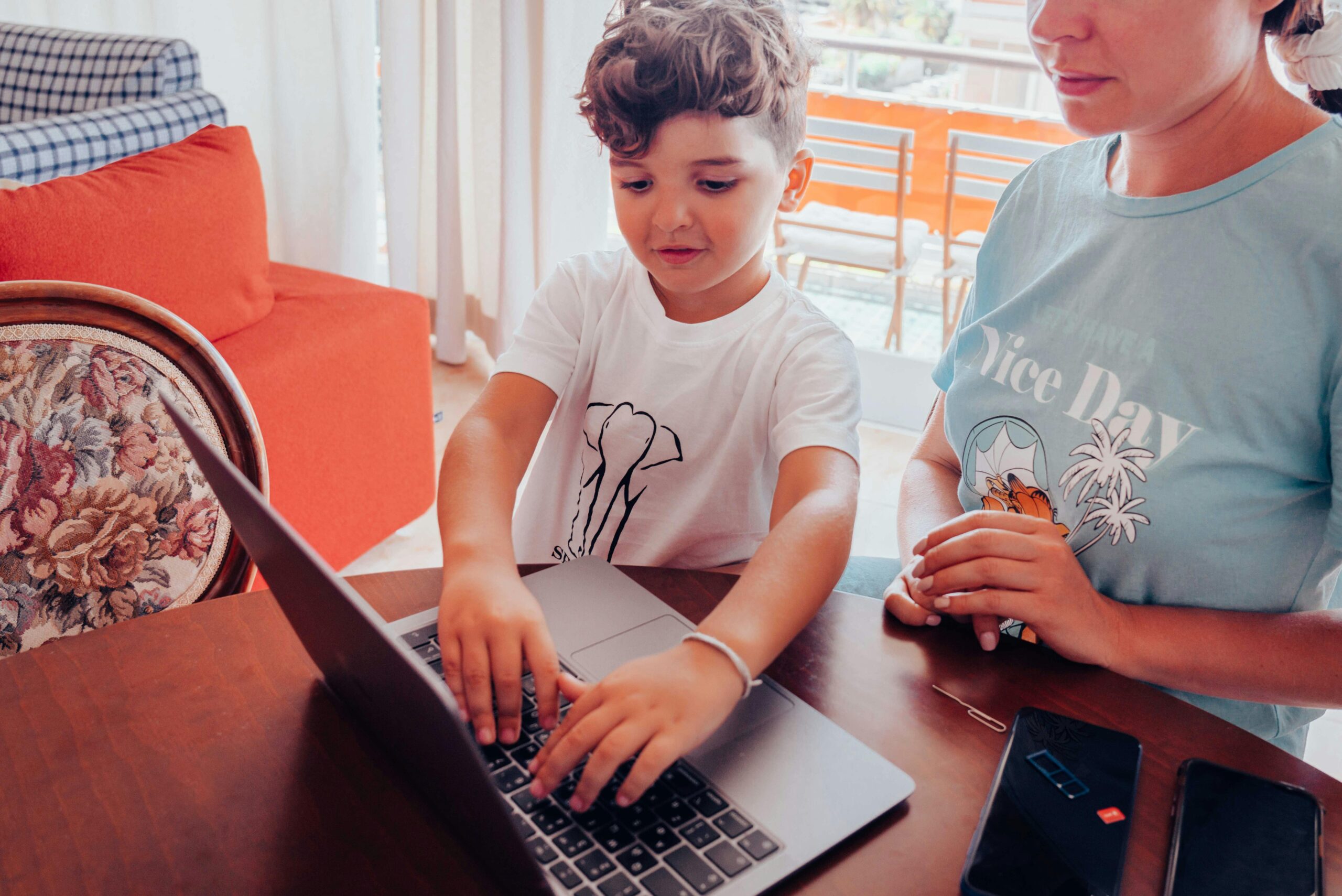
When Parental Controls Actually Work (And When They Don’t)
Parental controls are essential when:
- Your child is under age 12 (developmental research shows brain regions governing impulse control aren’t fully formed)
- Your family has recent incidents with inappropriate content exposure or concerning online behavior
- Your child is beginning social media use (ages 11–13, peak vulnerability period for algorithm-driven content)
- Your household uses multiple devices and you need consistent enforcement
- You have a teenager with documented impulsive internet use or concerning searches
Parental controls may backfire when:
- Used instead of conversation — Monitoring without dialogue increases secrecy, not safety
- Applied to teens (14+) without their input — Harvard research shows adolescents monitored without transparency become more secretive
- Configured too strictly — Damages parent-child relationship and creates cat-and-mouse dynamics
- Used as primary tool for mental health concerns — Can’t fix depression, anxiety, or friend conflicts; can only hide their digital manifestations
On Effectiveness
A 2023 meta-analysis in Computers in Human Behavior found parental controls reduce unintended content exposure by 65–75%, but tech-savvy users circumvent them 40–60% of the time.
On Relationship Impact
University of Wisconsin (2023): Parental controls paired with open family communication led to:
- 40% better digital literacy outcomes
- 35% fewer secretive behaviors
- 50% higher reported trust between parent and child
Controls without conversation: less inappropriate content, but higher secrecy and lower trust.
On Age and Effectiveness
Children under 12 benefit significantly from controls. By ages 14–16, effectiveness drops sharply if controls are perceived as invasive. Graduated independence with spot checks correlates with better outcomes.
Setup Time: Realistic Expectations
15 minutes initial setup
20 minutes
30 minutes (requires installing monitoring on multiple apps)
45–60 minutes (due to granular customization)
20 minutes
4 Mistakes Parents Make (and How to Avoid Them)
❌ Mistake 1: Installing monitoring without telling your child
This breaks trust when discovered (and it will be). Research shows children who learn about parental controls through confession are more likely to accept them than those who discover them independently.
How to handle: Family meeting, explain the reasoning, clarify what you’re monitoring and why, answer questions.
❌ Mistake 2: Choosing based on features rather than priorities
A parent concerned about screen time downloads Bark (designed for content monitoring), then feels frustrated because Bark doesn’t set screen time limits effectively. Different apps solve different problems.
How to avoid: Identify your top 3 concerns, then choose an app that excels at those.
❌ Mistake 3: Configuring restrictions too aggressively
Setting app time limits to 30 minutes daily for a teenager often backfires—the child sees it as punishment and resents the tool, leading to circumvention attempts.
How to handle: Start permissive, then gradually tighten based on actual behavior. A healthy 14-year-old might need minimal restrictions; one sneaking phone use at 3 AM needs more structure.
❌ Mistake 4: Assuming controls eliminate the need for conversation
Parental controls are guardrails, not parents. They can’t teach judgment or respond to concerning behavior with nuance.
How to fix: Use parental control data as conversation starters: “I noticed you’ve been on TikTok for 3 hours. Let’s talk about why” is more valuable than unilateral time cuts.
Frequently Asked Questions
Q: Can my child’s school see if I’m using parental controls at home?
No. Home parental controls operate independently from school systems. Schools only see behavior on school networks and school-issued devices.
Q: What age should I start using parental controls?
Ages 4–8: Basic web filtering. Ages 8–10: Add screen time management. Ages 11–13: Add social media and messaging monitoring (peak vulnerability). Continue through teen years but make controls more collaborative, not more restrictive.
Q: If my child disables parental controls, what should I do?
Treat it as a conversation starter, not a rule violation. A child circumventing controls is communicating something (feeling overly restricted, wanting privacy, testing boundaries). Responding with punishment typically escalates. Instead: “I notice you disabled this. Let’s talk about what you need.”
Q: Do parental controls slow down devices?
Potentially. Monitoring apps consume battery and processing power, particularly on older devices. Modern apps (2025+) are optimized, but older Android phones may see noticeable slowdowns.
Q: Is it legal to monitor my child’s online activity?
In most jurisdictions, yes, if the child is under 18 and the device is owned by the parent. GDPR has specific implications in the EU. Check your local jurisdiction, but generally: parental monitoring is a parental right and responsibility.
Q: What happens if I choose the wrong app?
Start with a 30-day trial or free version. Most parental control apps offer free tiers or refund policies. If an app isn’t working for your family, switching is straightforward.
Coordinating With Schools
What schools can do:
- Manage school network and device access (tools like Lightspeed, GoGuardian, Google Admin Console)
- Teach digital literacy and online safety as formal curriculum
- Respond to concerning content or behavior discovered during school use
What schools can’t or shouldn’t do:
- Monitor off-campus devices without explicit parental consent
- Access messaging apps or social media accounts
- Make decisions about home parental control settings
Best approach:
Parents set oversight boundaries. Schools teach digital literacy. Both work together on specific incidents. If your parental controls reveal concerning behavior during school hours, discuss with the school’s IT or counseling team.
This article provides educational information and should not be construed as clinical advice. If your child is exhibiting signs of depression, self-harm, or suicidality, parental controls won’t address the underlying issue. Reach out to a mental health professional. Parental controls are tools for oversight, not substitutes for communication, trust-building, or professional support.
Parenting Reviews: The Complete Guide to Choosing What Actually Works (2026)
Authoritative Resources for Best Parental Control Apps 2026
Expert Editorial Comparisons
- Forbes: Best Parental Control Apps 2026 – Ranked picks including Aura, Bark, Norton Family, Apple ScreenTime & more. :contentReference[oaicite:0]{index=0}
- TechRadar: Best Parental Control Apps of 2026 – Comprehensive review with feature highlights. :contentReference[oaicite:1]{index=1}
- SafeWise: Parental Control App Buyers Guide – Best apps with pros/cons and pricing. :contentReference[oaicite:2]{index=2}
- SCM Galaxy: Top 10 Parental Control Software Explained – Feature profile comparison & use cases. :contentReference[oaicite:3]{index=3}
Platform-Specific and Technical Guides
- Security.org: Ultimate Parental Controls Overview (2026) – Definitions, setup tips and best practices. :contentReference[oaicite:4]{index=4}
- Screen Time Official Site – Free and premium parental control tools. :contentReference[oaicite:5]{index=5}
- AirDroid Parental Control Official – Monitoring and tracking tools for family devices. :contentReference[oaicite:6]{index=6}
- Norton Family Parental Control – Features from Norton’s official product page. :contentReference[oaicite:7]{index=7}
Academic & Safety Considerations
- ArXiv: Parental Control Privacy & Security Study – Risks of sideloaded solutions vs. store apps. :contentReference[oaicite:8]{index=8}
Video Guides & Reviews
- YouTube: Best Parental Control Apps 2026 Review – Visual comparison of key apps. :contentReference[oaicite:9]{index=9}
Best Educational Apps for Kids (2026): Age-Wise Learning Apps Reviewed by Parents